For the complete documentation index, see llms.txt. Markdown versions of all docs pages are available by appending .md to any docs URL.
Store logs in a database
Store agentgateway access logs in a SQLite or PostgreSQL database to power the UI analytics and enable historical log queries.
By default, access logs are written to stdout. To persist LLM request logs, configure agentgateway to write records to a request_logs table. The database logger captures LLM traffic, rather than every HTTP or MCP access log. Agentgateway can use the configuration database or a separate request-log database.
Set up the database
Agentgateway supports SQLite and PostgreSQL as log storage backends. Set config.logging.database.url to the connection URL for your database. Agentgateway detects the backend from the URL. A postgres:// or postgresql:// URL uses PostgreSQL and any other value is treated as a SQLite file path. The UI has no field for config.logging.database, so set it in your configuration file.
# yaml-language-server: $schema=https://agentgateway.dev/schema/config
config:
  logging:
    database:
      url: "sqlite:///data/logs.db"                        # SQLite
      # url: "postgres://user:password@host:5432/dbname"  # PostgreSQL
If you have a database configured for configuration storage in config.database, agentgateway automatically uses this database to store access logs. No additional configuration is required. Set config.logging.database explicitly when you want access logs to go to a different database than the one that is used for configuration storage. If neither config.logging.database nor config.database is set, no database log store is initialized and access logs are written to stdout only.
For database setup instructions, including how to deploy PostgreSQL for Kubernetes installs, see Configuration storage.
Important
The Helm chart renders the config.database and config.storage sections for you from its mode and database.postgres.url values, so do not set those two sections in your values.yaml. To send access logs to a separate database on a Helm install, set config.logging.database under the chart’s top-level config field instead.
mode: database
database:
  postgres:
    url: "postgres://user:password@host:5432/agentgateway"
config:
  logging:
    database:
      url: "postgres://user:password@host:5432/agentgateway_logs"
Note
Access log customizations interact with the database as follows:
filter: Access log filtering via thefrontendPolicies.accessLog.filterfield applies to stdout and the database. A request that is filtered out of stdout is also excluded from the database.add: Adding custom log attributes via thefrontendPolicies.accessLog.addfield affects the access logs that are sent to stdout only. Use thefrontendPolicies.accessLog.database.addfield to add custom fields to database records.remove: Access log attributes that are defined infrontendPolicies.accessLog.removeare only removed from stdout. The database schema is fixed, so this setting has no effect on what is stored in the database.
Access log data storage
Each access log record captures the following data.
| Category | What is captured |
|---|---|
| Timing | Request start and end timestamps, duration in milliseconds |
| HTTP | Response status code, error message if any |
| Generative AI | Operation name, provider (for example openai), request model, response model, input/output/total token counts, and realized USD cost if a model cost catalog is configured |
| Token details | Input tokens read from and written to the prompt cache, and reasoning tokens. For more information, see Token and latency columns. |
| Latency | Time to first token and time per output token for streamed responses |
| Identity | User and group derived from API key metadata or a JWT claim, client user agent |
| Trace context | OpenTelemetry trace ID and span ID, if tracing is enabled |
| Attributes | All custom log attributes as a JSON blob |
Token and latency columns
request_logs includes these token and latency columns. Token values are empty when unreported. Latency values are empty for responses that are not streamed.
| Column | Description | Log attribute |
|---|---|---|
cache_read_input_tokens | Input tokens that the provider read from its prompt cache. | gen_ai.usage.cache_read.input_tokens |
cache_creation_input_tokens | Input tokens that the provider wrote to its prompt cache. | gen_ai.usage.cache_creation.input_tokens |
reasoning_tokens | Output tokens that the model used for reasoning. | gen_ai.usage.reasoning_tokens |
time_to_first_token_ms | Time to generate the first token of the response, in milliseconds. | agw.ai.time_to_first_token |
time_per_output_token_ms | Average time to generate each output token, in milliseconds. | agw.ai.time_per_output_token |
agctl standalone analytics uses these columns to report cache hit rate, average time to first token, and output tokens per second.
When a request prompt guard rejects an LLM request before the provider call, the database still stores a log record. The Logs page shows the rejection. The record includes request-side LLM metadata, but no provider response fields because the request never reaches the LLM provider.
By default, LLM prompt and completion content is not stored. To capture it, set llm: full under the frontendPolicies.accessLog.database section. You can set it in the UI or in your configuration file.
Whether the UI can save depends on your storage mode. For more information, see Save changes from the UI.
Open the Settings > Observability page, such as http://localhost:15000/ui/settings/observability, and click the Access logs card.
In the Database section, select Full from the LLM detail dropdown.
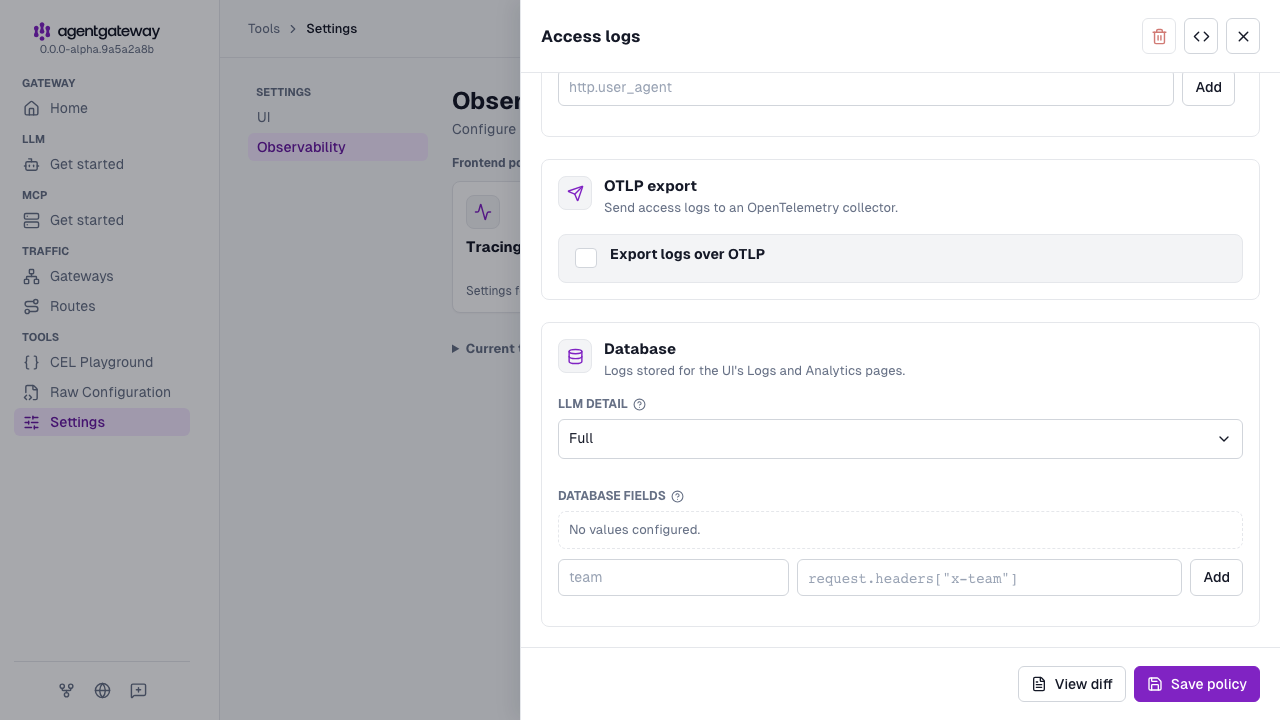
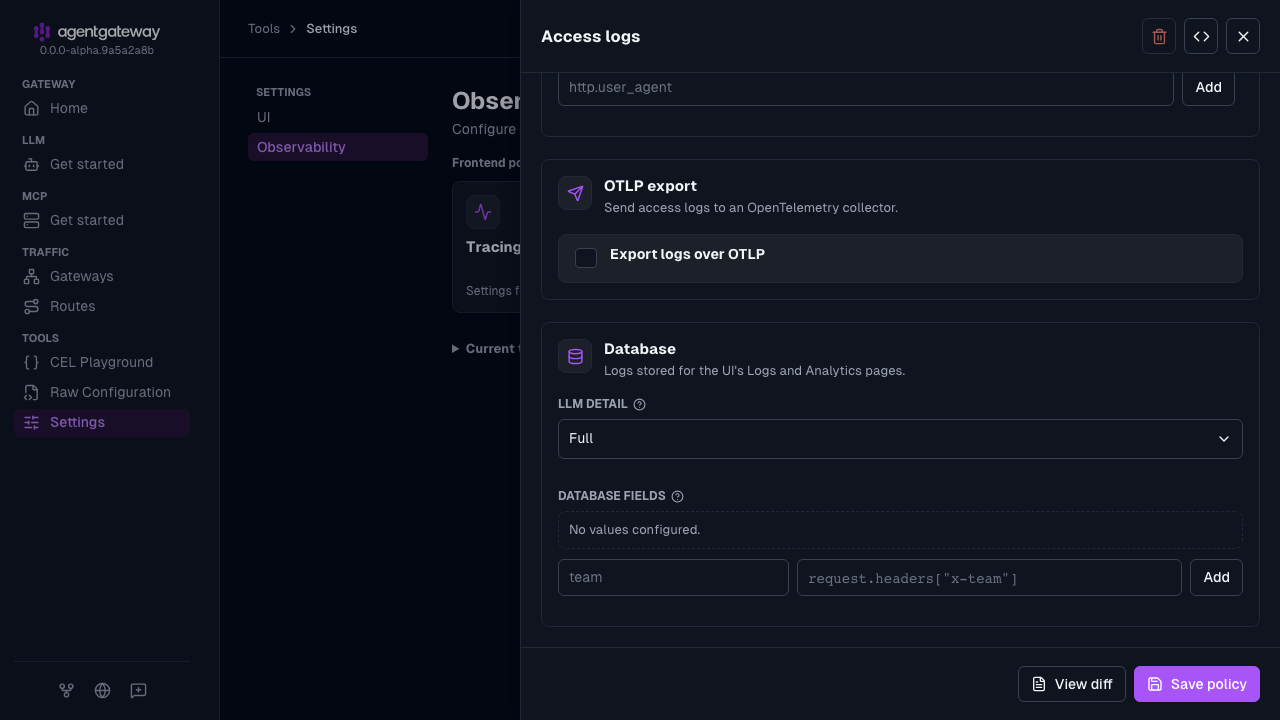
Click Save policy.
You can also open the Logs page, such as http://localhost:15000/ui/llm/logs, click Settings, select Include prompts and completions in logs, and click Save settings. Clearing that checkbox later sets llm: metadata instead of removing the field.
Schema migrations
At startup, agentgateway migrates the request log database that config.logging.database configures, or the database that config.database configures if you omit config.logging.database.
Applied changes are recorded in _agentgateway_request_log_migrations and run only once.
Upgrading from an earlier version, such as 1.6, adds the token and latency columns. Existing LLM rows are backfilled from attributes_json, so analytics include requests logged before the upgrade.
This backfill can delay the first startup on large tables. Back up the request log database before you upgrade.
To check which schema changes are applied to a SQLite database, query the migrations table.
sqlite3 /path/to/logs.db \
  "SELECT version, description, success FROM _agentgateway_request_log_migrations;"
Example output:
1|create request log schema|1
2|add request log analytics columns|1
On PostgreSQL, the migrations table also lists version 3, backfill request log analytics columns.
Downgrade to an earlier version
After migration, downgrade behavior depends on the backend.
SQLite: Earlier versions keep writing logs but leave the new columns empty. Upgrading again does not rerun the migration, so those rows remain unfilled.
PostgreSQL: Earlier versions cannot start because they do not recognize the applied migrations. To downgrade, follow the steps in this section.
Error: failed to migrate request log database schema
    migration 2 was previously applied but is missing in the resolved migrations
To downgrade agentgateway with a PostgreSQL request log database:
Delete the newer migration records. The new columns remain, and the earlier version ignores them. In the following command, the
DATABASE_URLenvironment variable holds the connection URL of the request log database.psql "$DATABASE_URL" \ -c "DELETE FROM _agentgateway_request_log_migrations WHERE version IN (2, 3);"Example output:
DELETE 2Start the earlier version of agentgateway.
Optional: To return to the newer version later, upgrade agentgateway again. The migrations run again and backfill the new columns, including logs written after the downgrade.
Query the database
Use agctl for routine queries through the gateway API. You do not need database credentials on the machine running the CLI.
agctl standalone logs --limit 10
agctl standalone logs --since 1h --attributes -o json
agctl standalone analytics --by provider,model --since 24h
To inspect a stored prompt and completion, run agctl standalone logs <request-id> with an ID from the listing. Payloads are available only when capture was enabled. For filters and streaming, see View LLM request logs with agctl.
Query with a database client
Use your database client to inspect the request_logs table directly and verify that access logs were written successfully. The following examples show the most recent 10 log entries.
sqlite3 /path/to/logs.db \
"SELECT id, started_at, http_status, gen_ai_provider_name, duration_ms FROM request_logs ORDER BY started_at DESC LIMIT 10;"To include LLM prompt and completion content (if you enabled llm: full), join the request_log_payloads table.
SELECT r.id, r.started_at, r.http_status, p.request_prompt_json, p.response_completion_json
FROM request_logs r
LEFT JOIN request_log_payloads p ON r.id = p.log_id
ORDER BY r.started_at DESC
LIMIT 10;
Add custom fields to database logs
Use the frontendPolicies.accessLog.database.add field to store additional access log fields that are evaluated as CEL expressions alongside each record.
Open the Settings > Observability page, and click the Access logs card.
In the Database section, under Database fields, enter
user_idas the name andrequest.headers["x-user-id"]as the value, and click Add.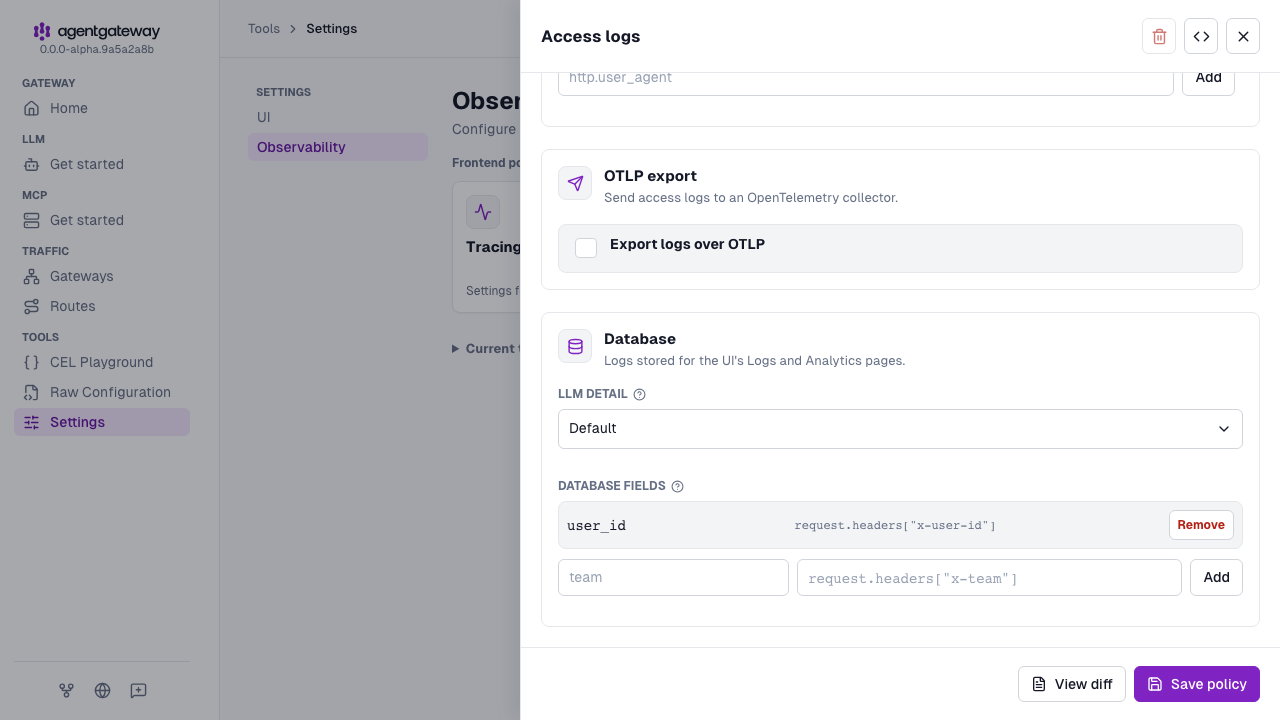
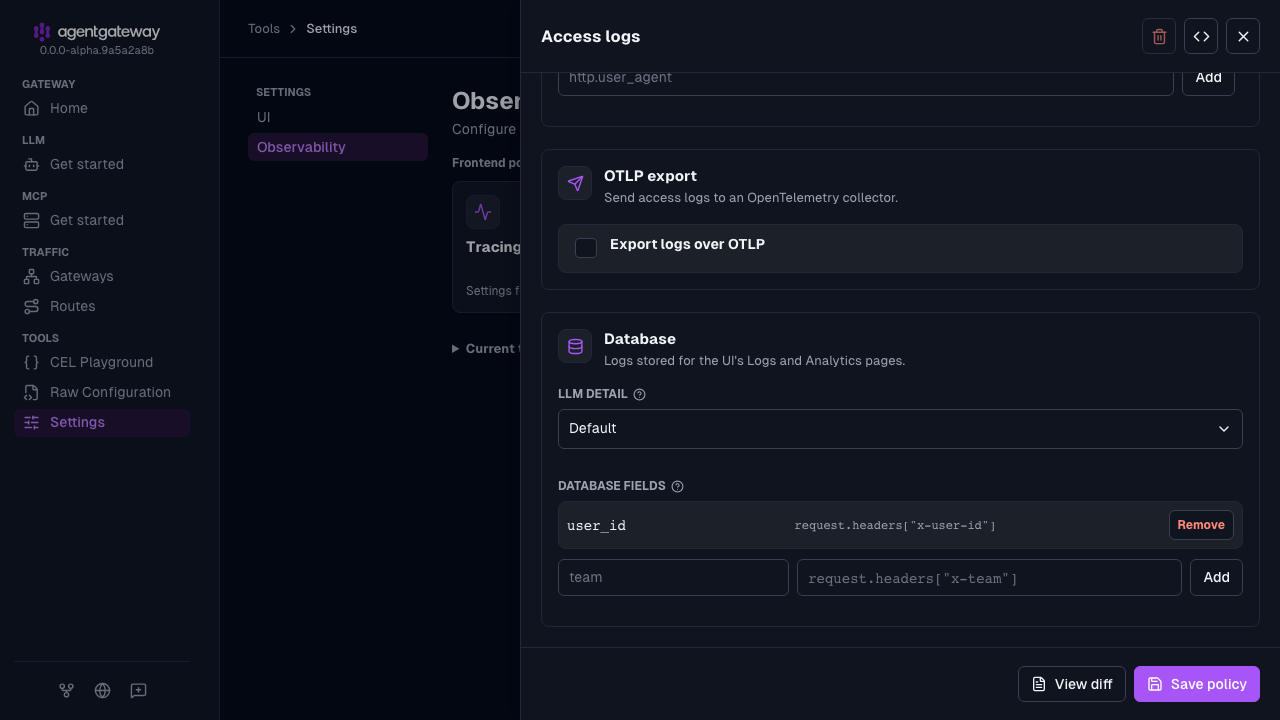
Click Save policy.
Custom fields are stored as a JSON blob in the attributes_json column of the request_logs table, not as separate columns. After sending another LLM request, inspect the new fields through the CLI, or use your database’s JSON functions below.
agctl standalone logs --attributes -o json
agctl standalone analytics --by user_id --since 1hsqlite3 /path/to/logs.db \
"SELECT id, json_extract(attributes_json, '$.user_id') AS user_id, started_at, http_status
FROM request_logs
ORDER BY started_at DESC
LIMIT 10;"Disable database logging
Agentgateway writes request logs to config.logging.database. If that field is not set, agentgateway writes request logs to config.database instead. To stop writing access logs to a database, remove both fields, and then restart agentgateway. If you keep config.database for other features, such as budgets or hybrid configuration storage, agentgateway keeps writing request logs to that database. After you remove both fields, access logs continue to go to stdout, and the database-backed UI pages and the agctl standalone logs and agctl standalone analytics commands become unavailable.